How to clear the cache on Microsoft Edge to free up system space
A step-by-step walkthrough on how to clear cached files and images in Microsoft Edge to improve computer performance and reclaim storage space on Windows PCs.
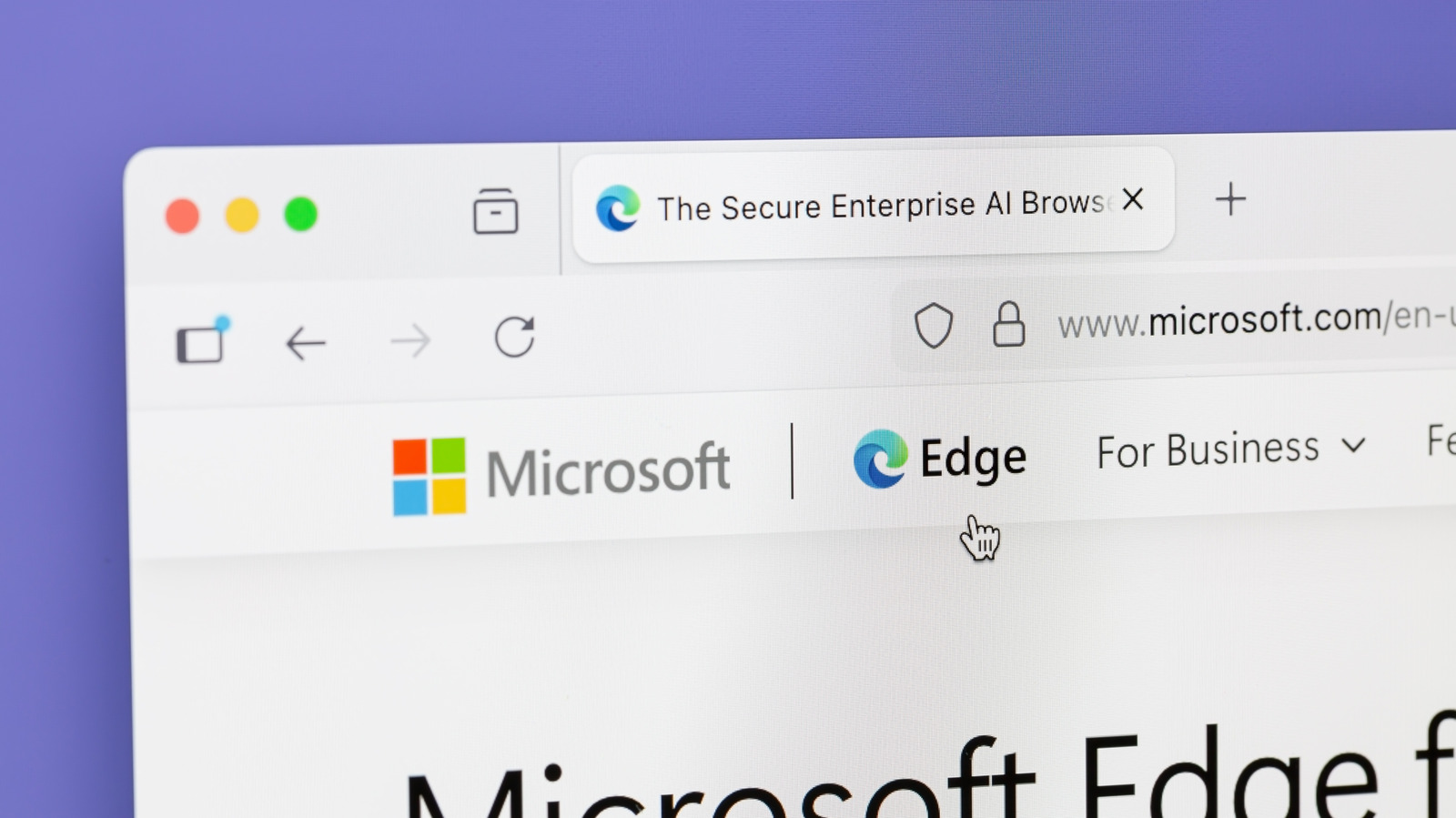 🧠AI Analysis
Photo: engadget.com
Key points
- Clearing the browser cache helps free up valuable storage and improve PC performance.
- Users can choose to clear data locally by disabling sync in the Edge settings profile.
- Cached images and files can be deleted across various time ranges from the privacy menu.
Clearing your browser cache is a straightforward yet effective method for maintaining system health, especially on Windows 11 computers with limited RAM and storage. Because upgrading hardware components can be costly, routine digital upkeep remains an accessible way to keep PCs running efficiently. Over time, web browsers like Microsoft Edge accumulate data such as scripts, images, and style sheets from visited websites, which can eventually clutter your storage drive.
Steps to clear the Edge cache
Before initiating the cleaning process, users should determine whether they want to purge data locally or across all synced hardware. If you only wish to clear the cache on your current device, navigate to the three-dot menu in Edge and select Settings > Profiles > Sync > Turn off sync.
- Go to the Settings and more menu via the three-dot icon next to the address bar.
- Select Privacy, search, and services, then click on Clear browsing data and choose Choose what to clear.
- Check the box for Cached images and files alongside your preferred time range, such as the last hour or all time.
- Click Clear now to finalize the process.
Regularly removing accumulated browser data helps keep your system responsive without requiring expensive hardware upgrades.
Performing this maintenance every few months removes outdated files from infrequently visited domains. It is a quick routine that benefits overall system hygiene on default Windows configurations.
Source engadget.com — engadget.com/2319769/how-to-clear-browser-cache-microsoft-edge/ ↗
Read next
 🛍️Sales Events
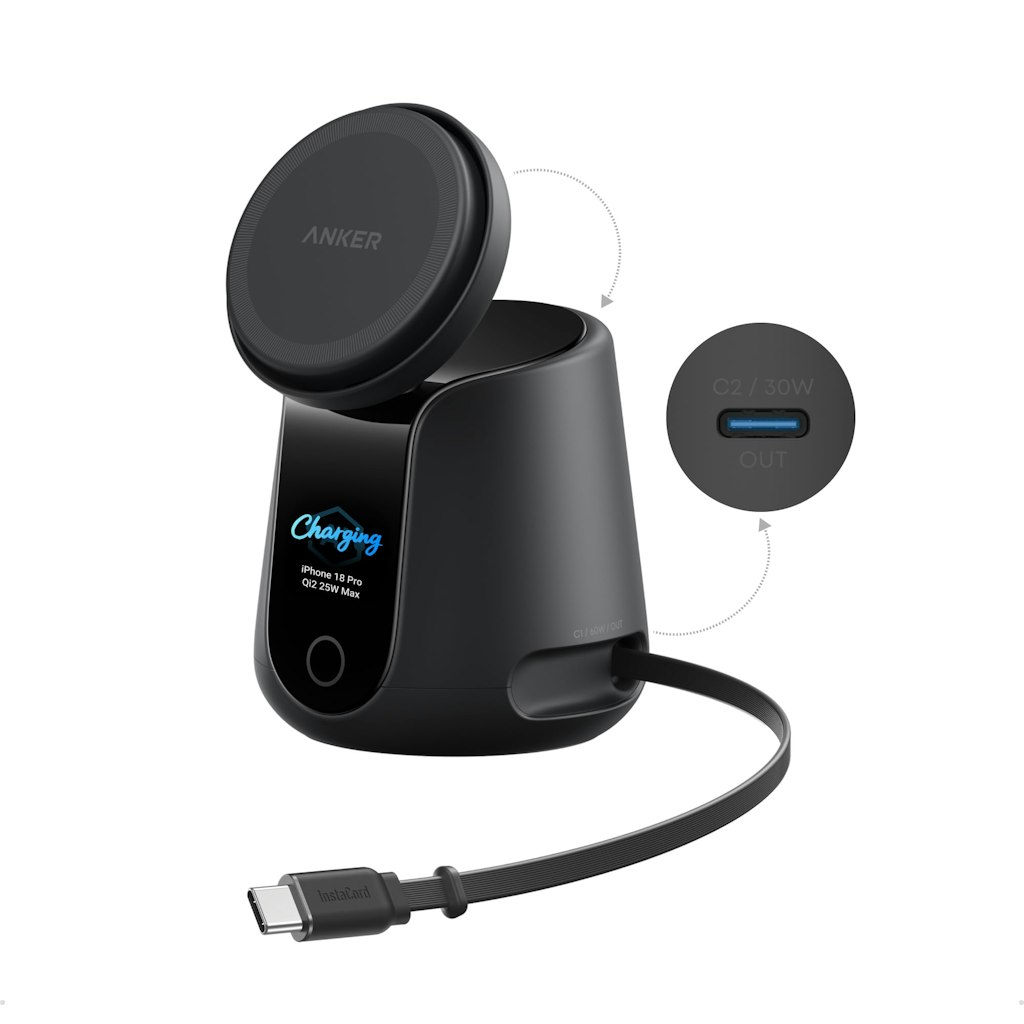
Anker MagStand Qi2 Wireless Charger Hits $90 All-Time Low in Black Friday Sales
Anker's MagStand 25W wireless charging station drops to $90 at Amazon, matching its lowest price ever, while a wave of Black Friday deals covers power banks, travel charg…
 🛍️Sales Events
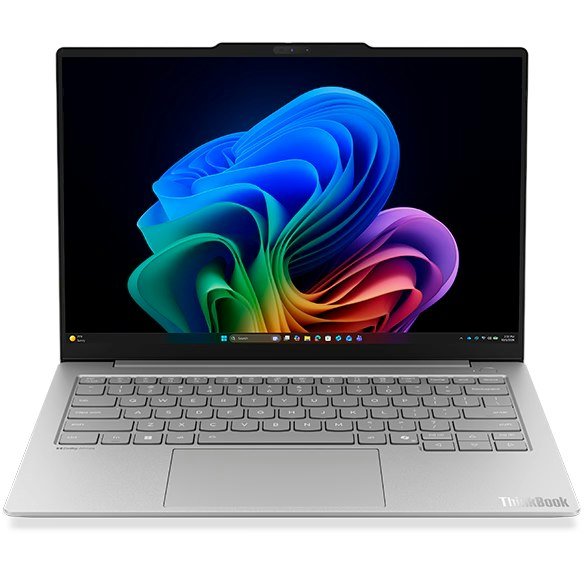
Black Friday Laptop Deals: Lenovo, Best Buy, and Walmart Cut Prices on ThinkBook, Yoga, and Gaming Models
Major retailers have launched Black Friday doorbuster sales on laptops, with Lenovo's ThinkBook 14x dropping to $699 and Best Buy offering a Yoga 7i 2-in-1 for $649.99.
 🧭Buying Guides
Essential Gear for Frequent Travelers: A Gift Guide
Selecting the right travel accessories can significantly reduce the stress of trip planning and packing. This guide highlights functional items designed to streamline the…
 🧭Buying Guides
Essential Guide to Choosing an EPA-Certified Wood Stove
Upgrading to a modern, EPA-certified wood stove can improve home heating efficiency while reducing particulate pollution compared to older, uncertified models.
 🏠Home & Kitchen
Art Leon Mid-Century Modern Swivel Chair Drops to $144
The Art Leon swivel office chair is currently available for $144, offering a blend of home-friendly aesthetics and functional utility.
 👟Fashion & Beauty
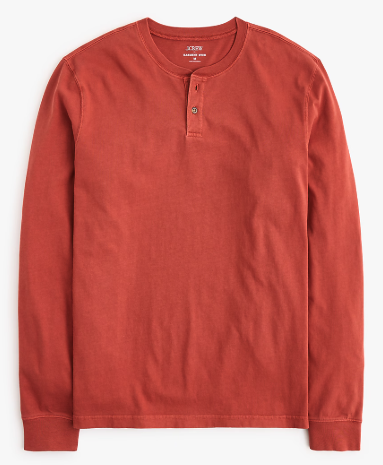
Black Friday Fashion and Travel Savings: J.Crew Factory, Nordstrom Rack, and More
Retailers are rolling out significant pre-Black Friday discounts on apparel and travel gear, featuring clearance markdowns and promotional codes for new customers.