How to Put Your iPad Into Recovery Mode to Fix Serious Software Issues
A step-by-step guide on using recovery mode to revive an unresponsive iPad via a computer connection, covering both models with and without a home button.
 🧭Buying Guides
Photo: engadget.com
Key points
- Covers recovery steps for iPads with and without a home button
- Explains the difference between updating and restoring software
- Outlines necessary tools including a USB cable and computer software
Dealing with a frozen tablet, a failed software installation, or a forgotten passcode does not automatically mean your device is permanently broken. While standard restarts solve most minor glitches, severe operating system failures require a more advanced troubleshooting method. Entering recovery mode lets you connect the tablet to a computer running Finder or the Apple Devices app to reinstall the operating system or reset the device entirely.
For older tablets equipped with a physical home button, users must connect the device via a USB cable, then simultaneously press and hold both the home and power buttons. Keep holding them down through the black screen and the appearance of the Apple logo until the recovery mode icon—depicting a cable pointing toward a computer—finally appears on the display. Newer models featuring Face ID and no home button require a different button sequence: quickly press and release the volume up button, quickly press and release the volume down button, and then press and hold the top power button through the startup logo until the recovery screen emerges.
Once the device successfully enters this state, a prompt will appear on your computer offering options to update or restore the software. Selecting the update route allows the computer to reinstall iPadOS without wiping personal files, making it the safest initial choice. If that fails, a full factory restore is required, which will erase all local data unless a recent cloud backup is available. Before you try: Ensure your computer has the latest software installed and be prepared for potential data loss if an update fails to resolve the underlying system error.
Source engadget.com — engadget.com/2315100/how-to-put-ipad-in-recovery-mode/ ↗
Read next
 🛍️Sales Events
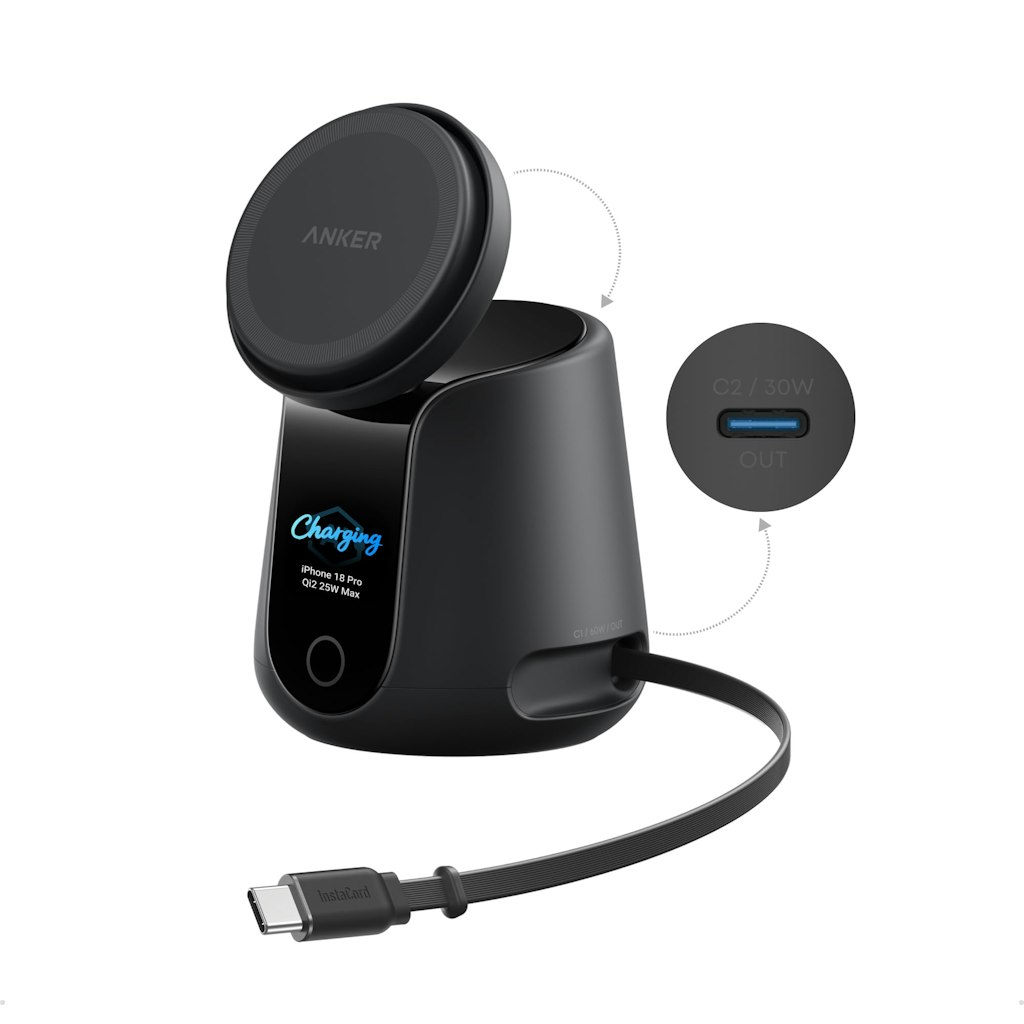
Anker MagStand Qi2 Wireless Charger Hits $90 All-Time Low in Black Friday Sales
Anker's MagStand 25W wireless charging station drops to $90 at Amazon, matching its lowest price ever, while a wave of Black Friday deals covers power banks, travel charg…
 🛍️Sales Events
Black Friday Laptop Deals: Lenovo, Best Buy, and Walmart Cut Prices on ThinkBook, Yoga, and Gaming Models
Major retailers have launched Black Friday doorbuster sales on laptops, with Lenovo's ThinkBook 14x dropping to $699 and Best Buy offering a Yoga 7i 2-in-1 for $649.99.
 🏠Home & Kitchen
Art Leon Mid-Century Modern Swivel Chair Drops to $144
The Art Leon swivel office chair is currently available for $144, offering a blend of home-friendly aesthetics and functional utility.
 👟Fashion & Beauty
Black Friday Fashion and Travel Savings: J.Crew Factory, Nordstrom Rack, and More
Retailers are rolling out significant pre-Black Friday discounts on apparel and travel gear, featuring clearance markdowns and promotional codes for new customers.
 💻Tech Deals
UGREEN MagFlow 25W 2-in-1 Travel Charger Hits New All-Time Low of $28
UGREEN has discounted its MagFlow 25W 2-in-1 travel charger to $28.49, marking a 53% price reduction for Black Friday week.
 🛍️Sales Events
Walmart Launches Second Wave of Black Friday Tech Deals
Walmart has released its second major round of Black Friday discounts, featuring significant price drops on Apple hardware, gaming consoles, and home theater equipment.