How to Troubleshoot and Diagnose Monitor Flickering
Monitor flickering is a common frustration that can often be resolved with basic troubleshooting before resorting to a replacement. This guide outlines the steps to identify whether your display issues are caused by faulty cables, software bugs, or hardware failure.
 🧭Buying Guides
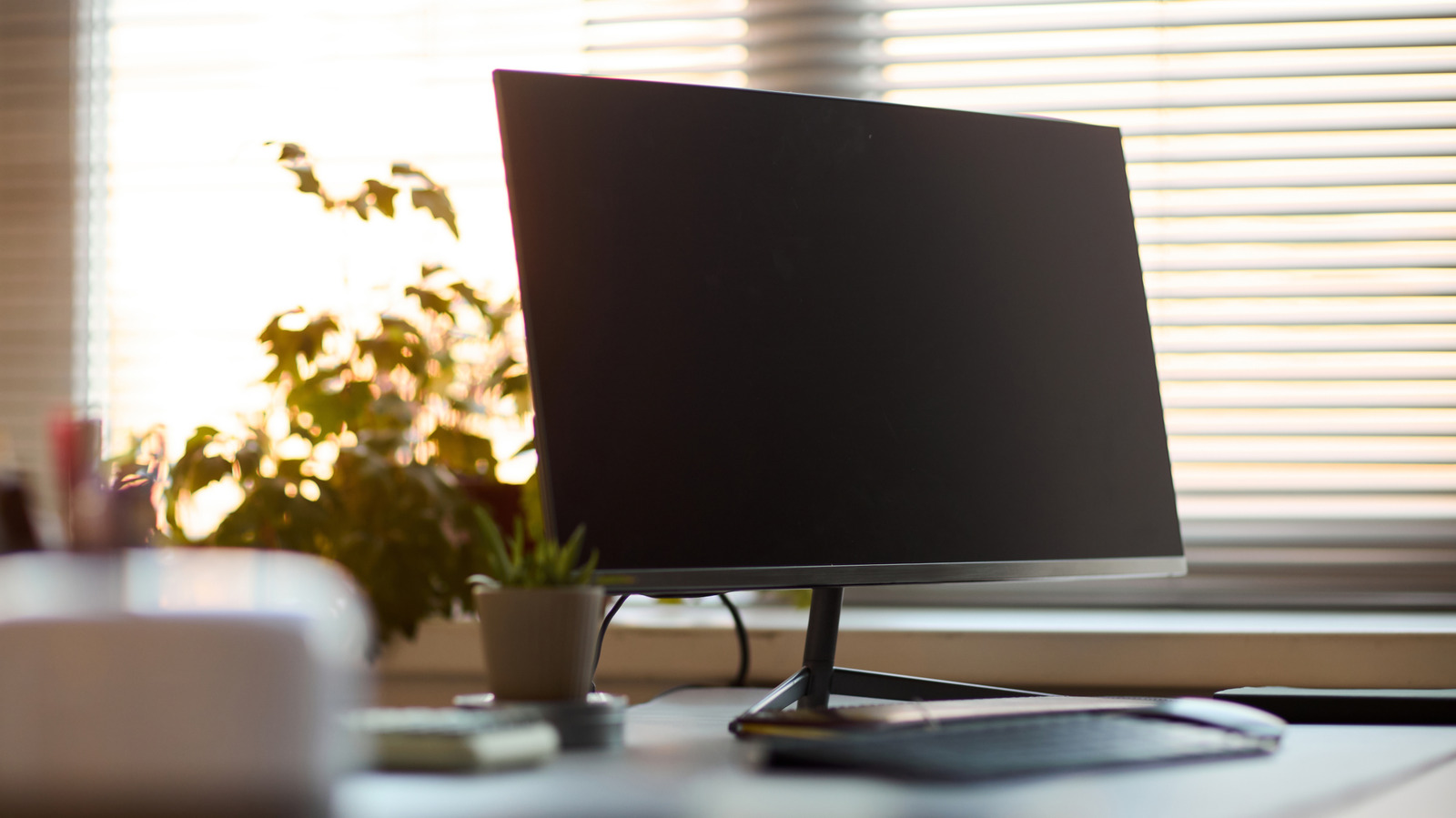
Photo: engadget.com
Key points
- Check cables and ports for physical damage or loose connections.
- Update or roll back graphics drivers to address software-related flickering.
- Verify that OS refresh rate settings match the monitor's specifications.
When a computer monitor begins to flicker, it often signals a technical issue that can be diagnosed through a series of logical checks. Before assuming the hardware is failing, start by inspecting the physical connection between your display and your computer. A loose, frayed, or damaged HDMI, DisplayPort, or VGA cable is a frequent culprit. Try re-seating the cable or swapping it for a known working one to rule out a simple connection failure.
If the physical connection is sound, the issue may reside within your software. Outdated graphics drivers are a common cause of display instability; updating them through your operating system or rolling back to a previous version can often stabilize the signal. Additionally, verify that your monitor's refresh rate settings in Windows match the hardware's capabilities. Mismatched refresh rates between the OS and the display panel are a frequent source of visual stuttering.
Persistent flickering, accompanied by vertical lines, dimming, or sudden blackouts, often indicates that the monitor's internal hardware is nearing the end of its lifespan. If standard troubleshooting fails to resolve these symptoms, repair may be cost-prohibitive. Given the falling prices of modern 4K and OLED displays, replacing a malfunctioning unit is often more economical than seeking professional repair services.
Before you buy: If your monitor is still under warranty, contact the manufacturer for support before attempting any internal repairs, as opening the casing may void your coverage.
Source engadget.com — engadget.com/2319538/monitor-flickering-when-turned-on-how-to-fix/ ↗
Read next
 🛍️Sales Events
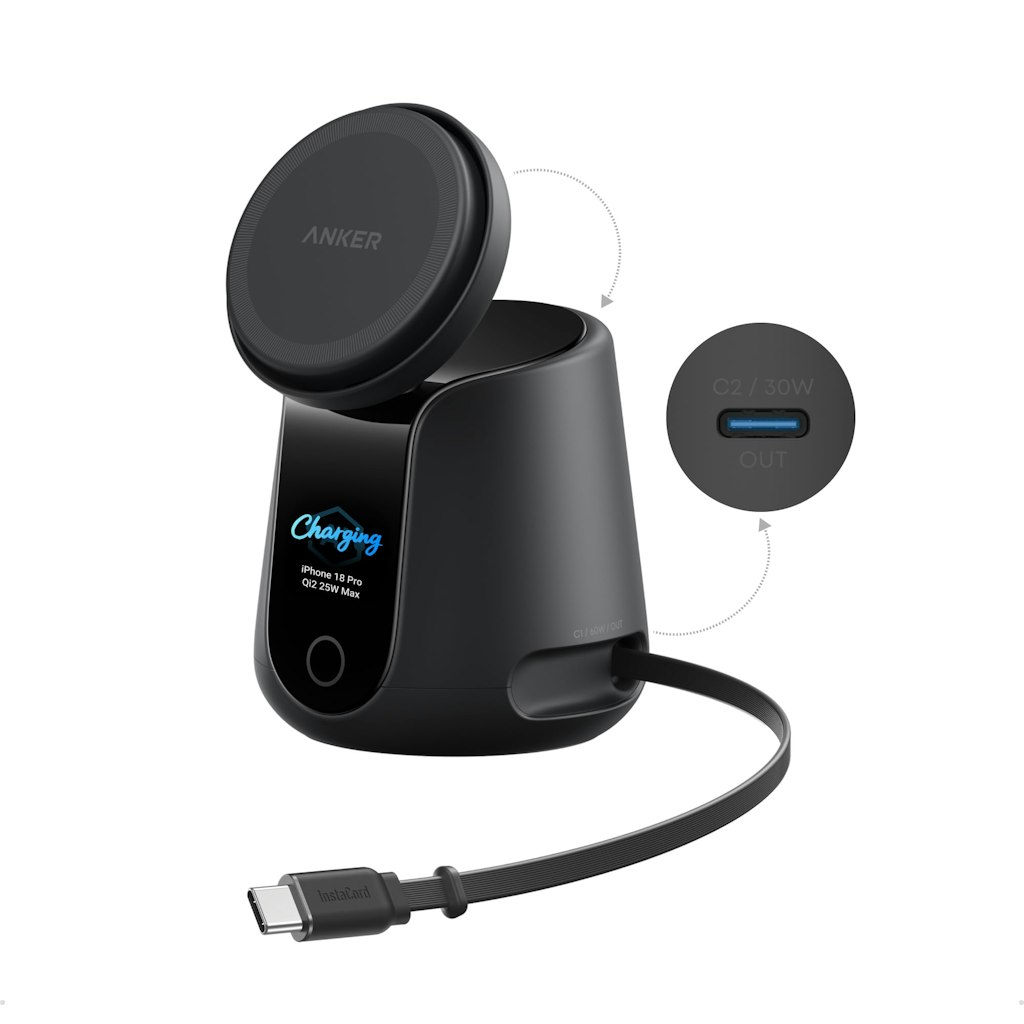
Anker MagStand Qi2 Wireless Charger Hits $90 All-Time Low in Black Friday Sales
Anker's MagStand 25W wireless charging station drops to $90 at Amazon, matching its lowest price ever, while a wave of Black Friday deals covers power banks, travel charg…
 🛍️Sales Events
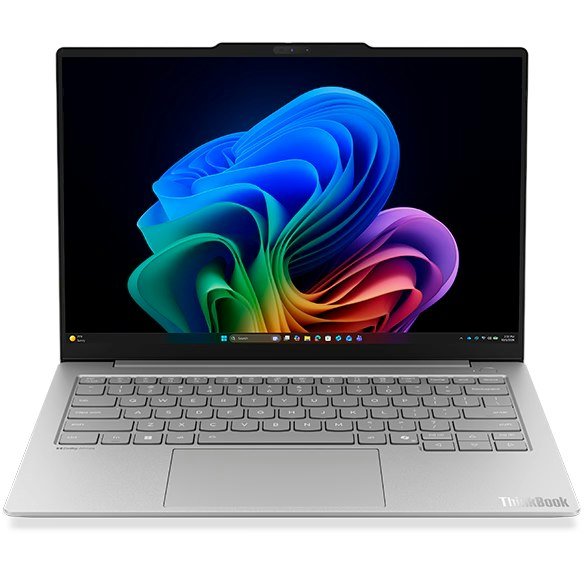
Black Friday Laptop Deals: Lenovo, Best Buy, and Walmart Cut Prices on ThinkBook, Yoga, and Gaming Models
Major retailers have launched Black Friday doorbuster sales on laptops, with Lenovo's ThinkBook 14x dropping to $699 and Best Buy offering a Yoga 7i 2-in-1 for $649.99.
 🏠Home & Kitchen
Art Leon Mid-Century Modern Swivel Chair Drops to $144
The Art Leon swivel office chair is currently available for $144, offering a blend of home-friendly aesthetics and functional utility.
 👟Fashion & Beauty
Black Friday Fashion and Travel Savings: J.Crew Factory, Nordstrom Rack, and More
Retailers are rolling out significant pre-Black Friday discounts on apparel and travel gear, featuring clearance markdowns and promotional codes for new customers.
 💻Tech Deals
UGREEN MagFlow 25W 2-in-1 Travel Charger Hits New All-Time Low of $28
UGREEN has discounted its MagFlow 25W 2-in-1 travel charger to $28.49, marking a 53% price reduction for Black Friday week.
 🛍️Sales Events
Walmart Launches Second Wave of Black Friday Tech Deals
Walmart has released its second major round of Black Friday discounts, featuring significant price drops on Apple hardware, gaming consoles, and home theater equipment.