How to Use the Hidden Windows Powercfg Tool to Check Your Laptop Battery Health
Discover how to use the built-in Windows Powercfg utility to diagnose your laptop's battery health and determine if you need a replacement.
 💻Tech Deals
Photo: engadget.com
Key points
- Powercfg is a built-in Windows utility for diagnosing laptop batteries and energy efficiency.
- Entering powercfg /batteryreport creates a detailed HTML file comparing current and design capacities.
- The powercfg /energy command runs a 60-second efficiency check to identify power-draining applications.
Monitoring the lifespan of a laptop is closely tied to keeping an eye on its internal components, especially the battery. A failing battery can severely impact overall performance and eventually prevent the device from booting up entirely. Fortunately, Windows features a powerful built-in command-line utility called Powercfg that helps users easily diagnose power efficiency and battery conditions without needing third-party software.
To run a comprehensive diagnostic, users can open the Terminal or Command Prompt as an administrator and enter specific commands. Typing powercfg /batteryreport generates a complete HTML report detailing the current health status, comparing the full charge capacity against the original design capacity. According to Dell guidelines, a battery operating below 40 percent capacity generally requires a replacement. Additionally, running powercfg /energy performs a 60-second scan to pinpoint which applications and devices are draining power excessively.
Before you run these diagnostics, ensure you know how to open your Windows Terminal or Command Prompt in administrator mode by using the Win+X shortcut menu.
Spotting warning signs early—such as sluggish charging, random shutdowns, or physical swelling—can prevent catastrophic hardware failure. Utilizing the native Powercfg tool allows laptop owners to evaluate their hardware for free and decide when it is time to invest in a new replacement battery.
Source engadget.com — engadget.com/2312107/built-in-windows-tool-diagnose-pc-battery-heal… ↗
Read next
 🛍️Sales Events
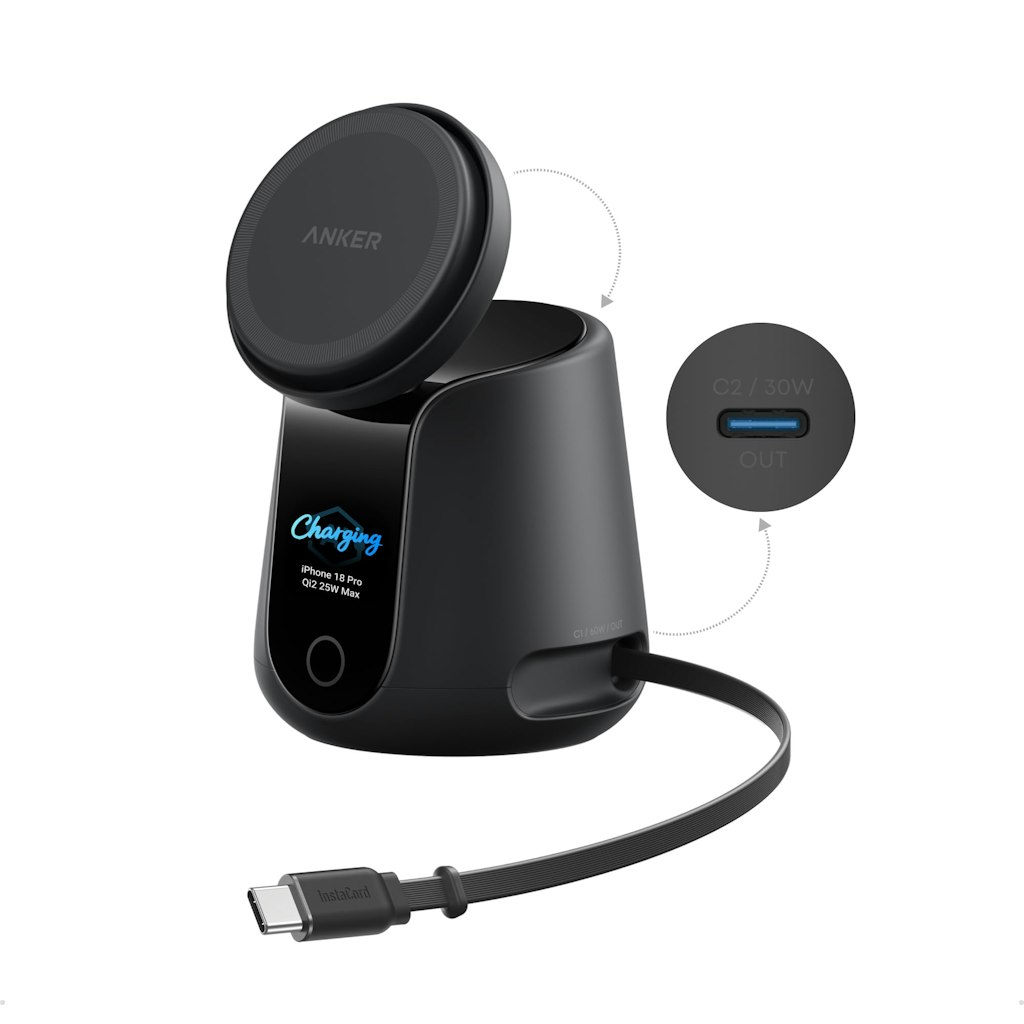
Anker MagStand Qi2 Wireless Charger Hits $90 All-Time Low in Black Friday Sales
Anker's MagStand 25W wireless charging station drops to $90 at Amazon, matching its lowest price ever, while a wave of Black Friday deals covers power banks, travel charg…
 🛍️Sales Events
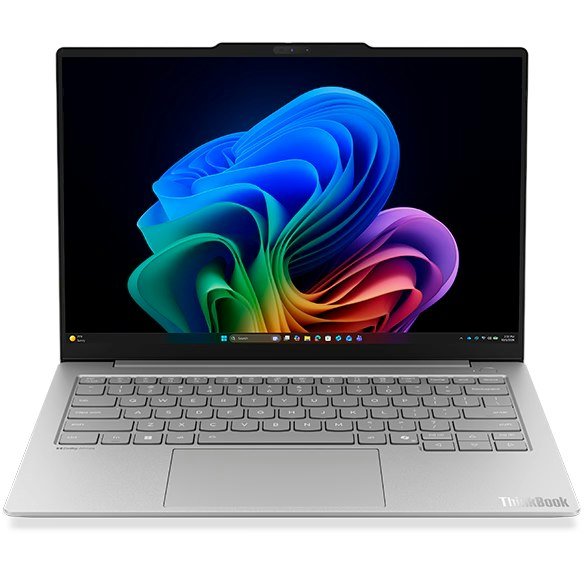
Black Friday Laptop Deals: Lenovo, Best Buy, and Walmart Cut Prices on ThinkBook, Yoga, and Gaming Models
Major retailers have launched Black Friday doorbuster sales on laptops, with Lenovo's ThinkBook 14x dropping to $699 and Best Buy offering a Yoga 7i 2-in-1 for $649.99.
 🧭Buying Guides
Essential Gear for Frequent Travelers: A Gift Guide
Selecting the right travel accessories can significantly reduce the stress of trip planning and packing. This guide highlights functional items designed to streamline the…
 🧭Buying Guides
Essential Guide to Choosing an EPA-Certified Wood Stove
Upgrading to a modern, EPA-certified wood stove can improve home heating efficiency while reducing particulate pollution compared to older, uncertified models.
 🏠Home & Kitchen
Art Leon Mid-Century Modern Swivel Chair Drops to $144
The Art Leon swivel office chair is currently available for $144, offering a blend of home-friendly aesthetics and functional utility.
 👟Fashion & Beauty
Black Friday Fashion and Travel Savings: J.Crew Factory, Nordstrom Rack, and More
Retailers are rolling out significant pre-Black Friday discounts on apparel and travel gear, featuring clearance markdowns and promotional codes for new customers.